
The Profit and Loss With Budget Tracking Report (also labelled P&L vs Budget in the app) adds budget data alongside actuals, so you can see how each department is tracking against their budget for the period. Budget data is pulled from your connected Xero organisation, so the comparison stays in sync with what you’re maintaining there.
To open it, click Reports → Profit and Loss With Budget Tracking Report in the left navigation.
Setting the report period
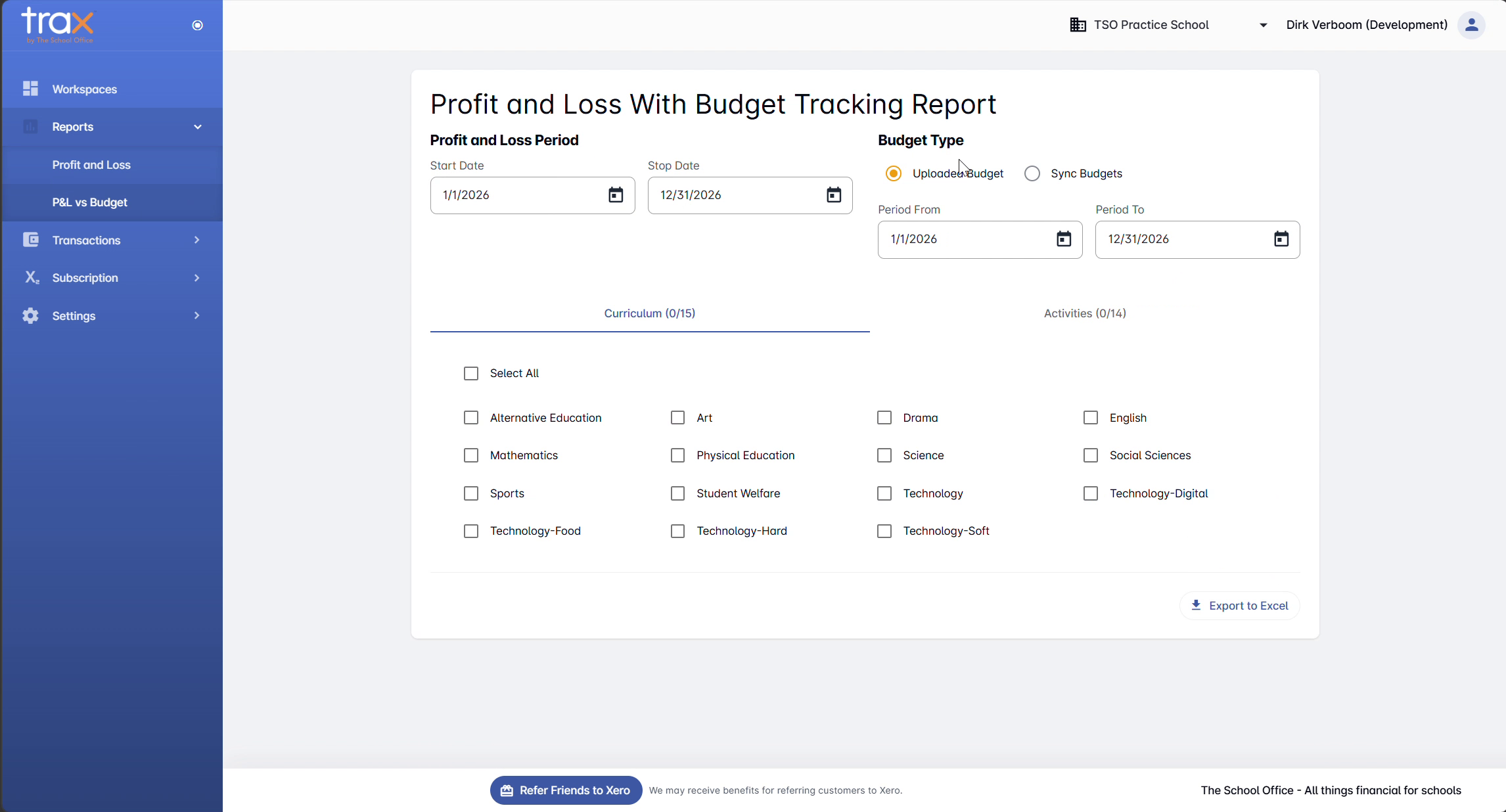
The Profit and Loss Period section sets the date range that actuals are calculated from. Set Start Date and Stop Date.
Choosing the budget source
The Budget Type section lets you choose where budget data comes from:
- Uploaded Budget — uses a budget file uploaded to TRAX (via Settings → Budget Uploads). Use this when budgets live outside Xero.
- Sync Budgets — uses the budgets configured in your connected Xero organisation. Use this when budgets are maintained in Xero directly.
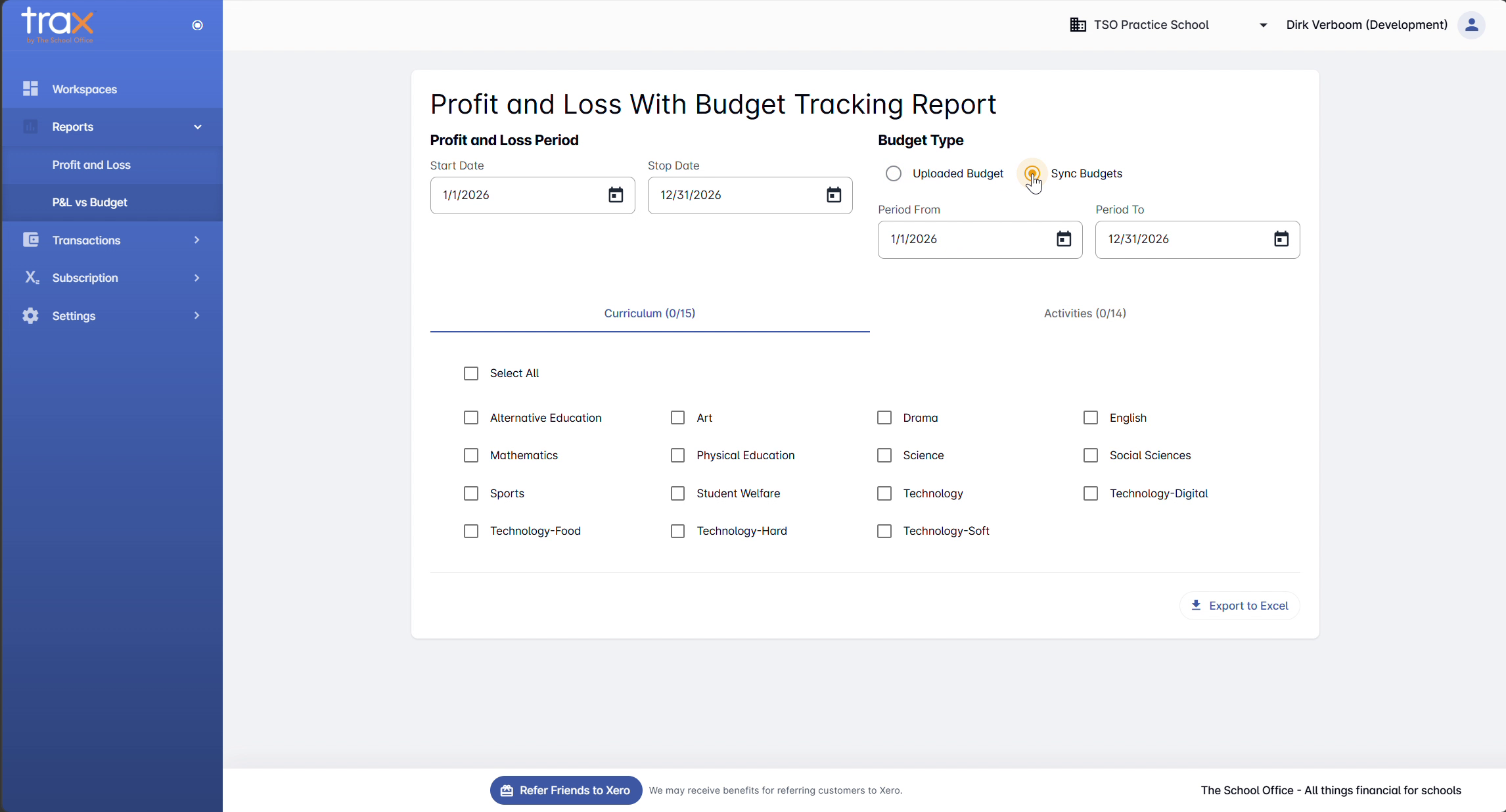
Click the matching radio button to select your source. Below, the Period From and Period To fields specify the date range the budget data should cover. This can match the P&L period or differ (e.g. budget for the full year, P&L for a single month).
Filtering by tracking categories
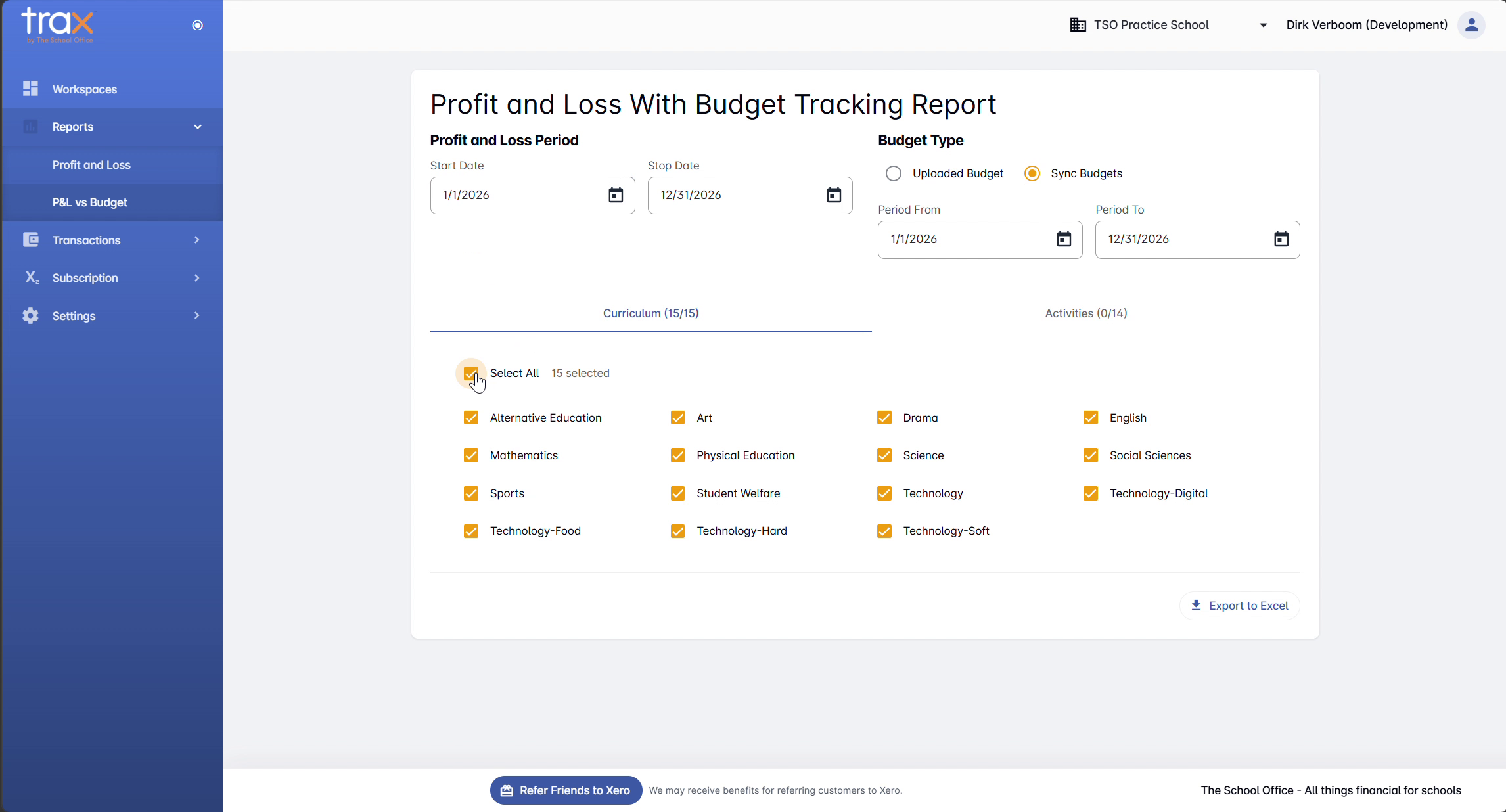
The Curriculum and Activities tracking-category filters work the same way as on the standard Profit and Loss page. Click a tab, toggle individual options or use Select All, and the Selected Options Summary tracks your choices.
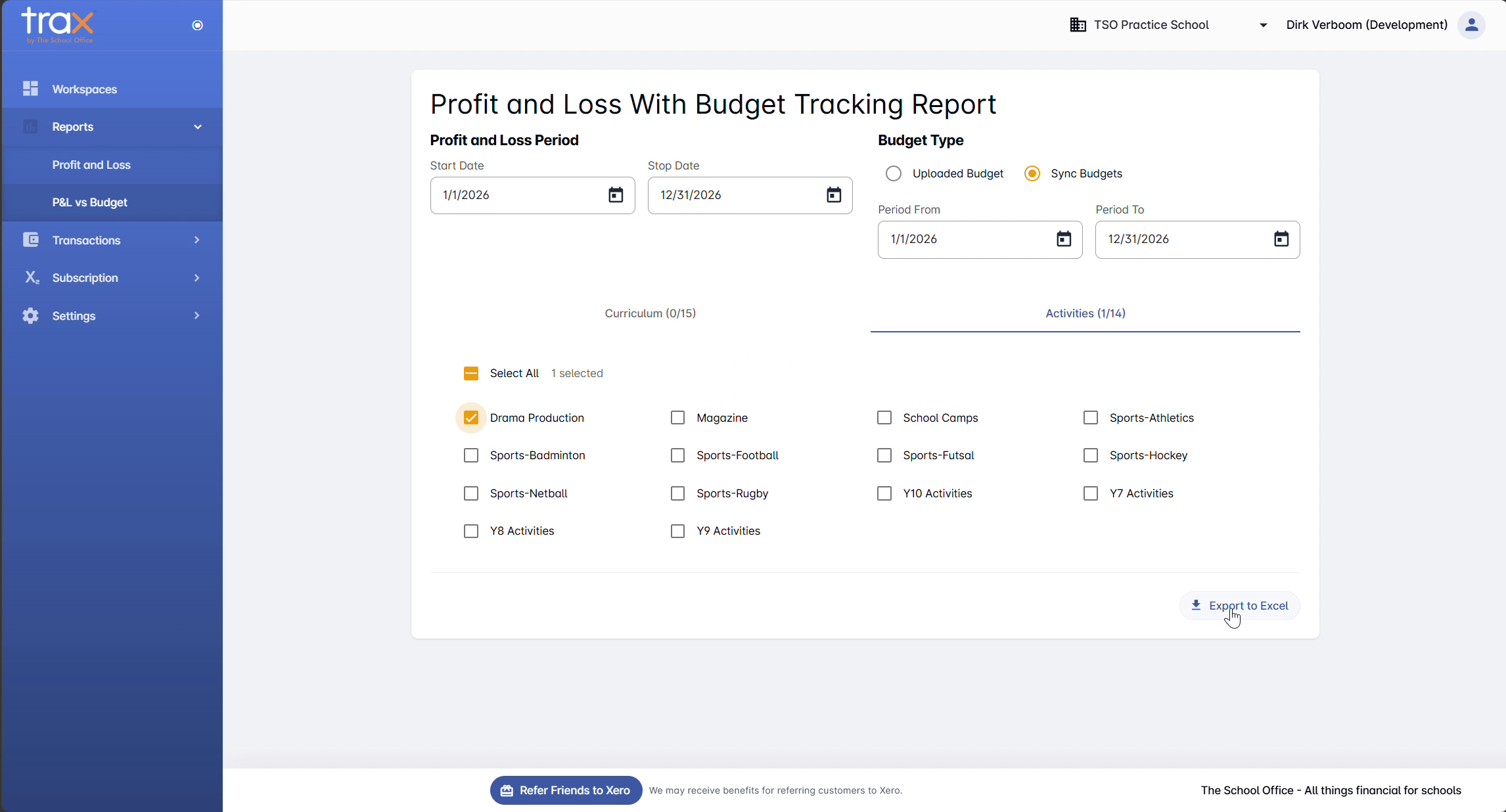
Combine Curriculum and Activities filters to slice the report exactly the way each HOD needs.
Exporting the report
Click Export to Excel at the bottom of the page to download the budget-tracking report as an XLSX file.
Note: Unlike the standard P&L report, the Budget Tracking version currently exports only to Excel.
Tips
- Use Sync Budgets when budgets live in Xero. Saves uploading separate files and ensures the report is always against the latest Xero budget.
- Use Uploaded Budget for what-if scenarios. Upload a custom budget file when you want to compare actuals against a different baseline (e.g. an older budget version, or a stretch target).
- Match periods carefully. The P&L Period and Budget Period don’t have to match — but if you’re comparing same-period actuals vs budget, set them the same.
For anything else, get in touch with TSO support.