The Invoices page lists every invoice synced from Xero into your TRAX workspace. Use it to review invoice activity over a date range, filter by status or contact, and pull fresh data from Xero on demand.
To open it, click Transactions → Invoices in the left navigation.
The Invoices page at a glance
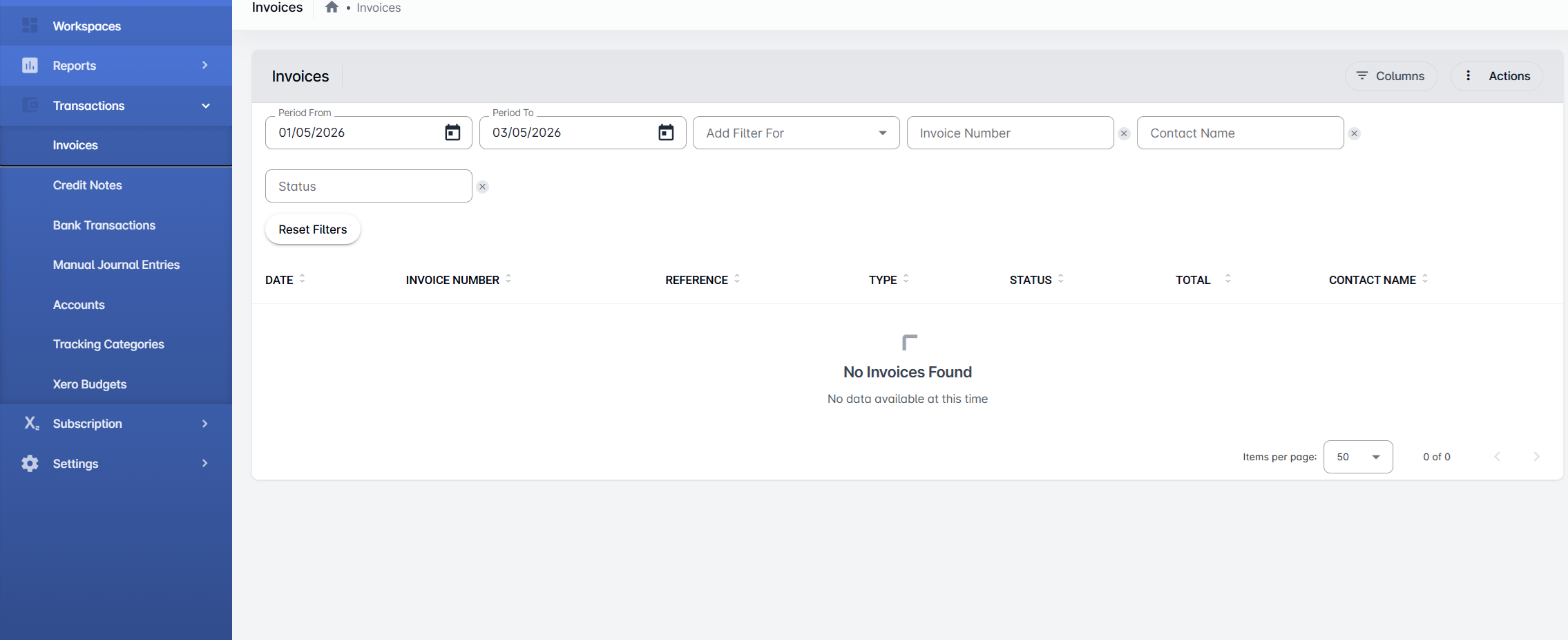
The page is split into three areas:
- Filters bar at the top — narrow the list by date range, status, invoice number, or contact name.
- Action buttons in the top-right (Columns, Actions) — control which columns are visible and run sync operations.
- Invoice table in the middle — sortable columns showing each invoice’s details. When no invoices match your filters or no data has been synced yet, you’ll see No Invoices Found.
The default visible columns are Date, Invoice Number, Reference, Type, Status, Total, and Contact Name.
Filtering invoices
The filters bar gives you several ways to narrow the list:
- Period From / Period To — date range. By default the current period is preset to a recent window. Use the calendar icons to pick custom dates.
- Add Filter For dropdown — adds extra filter fields. Available filters: Invoice Number, Contact Name, and Status.
- Status — invoice status (e.g. Draft, Submitted, Authorised, Paid, Voided).
Once filters are applied, click Reset Filters to clear everything.
Customising visible columns
Click the Columns button in the top-right to toggle which columns appear in the table. The full list of available columns is:
Date, Organization, Invoice Number, Reference, Type, Status, Total, Amount Due, Amount Paid, Currency Code, Due Date, Fully Paid On Date, Expected Payment Date, Planned Payment Date, Contact Name.
Tick or untick columns to show or hide them.
Actions menu
Click the Actions button (three-dot menu, top-right) to open the actions menu.
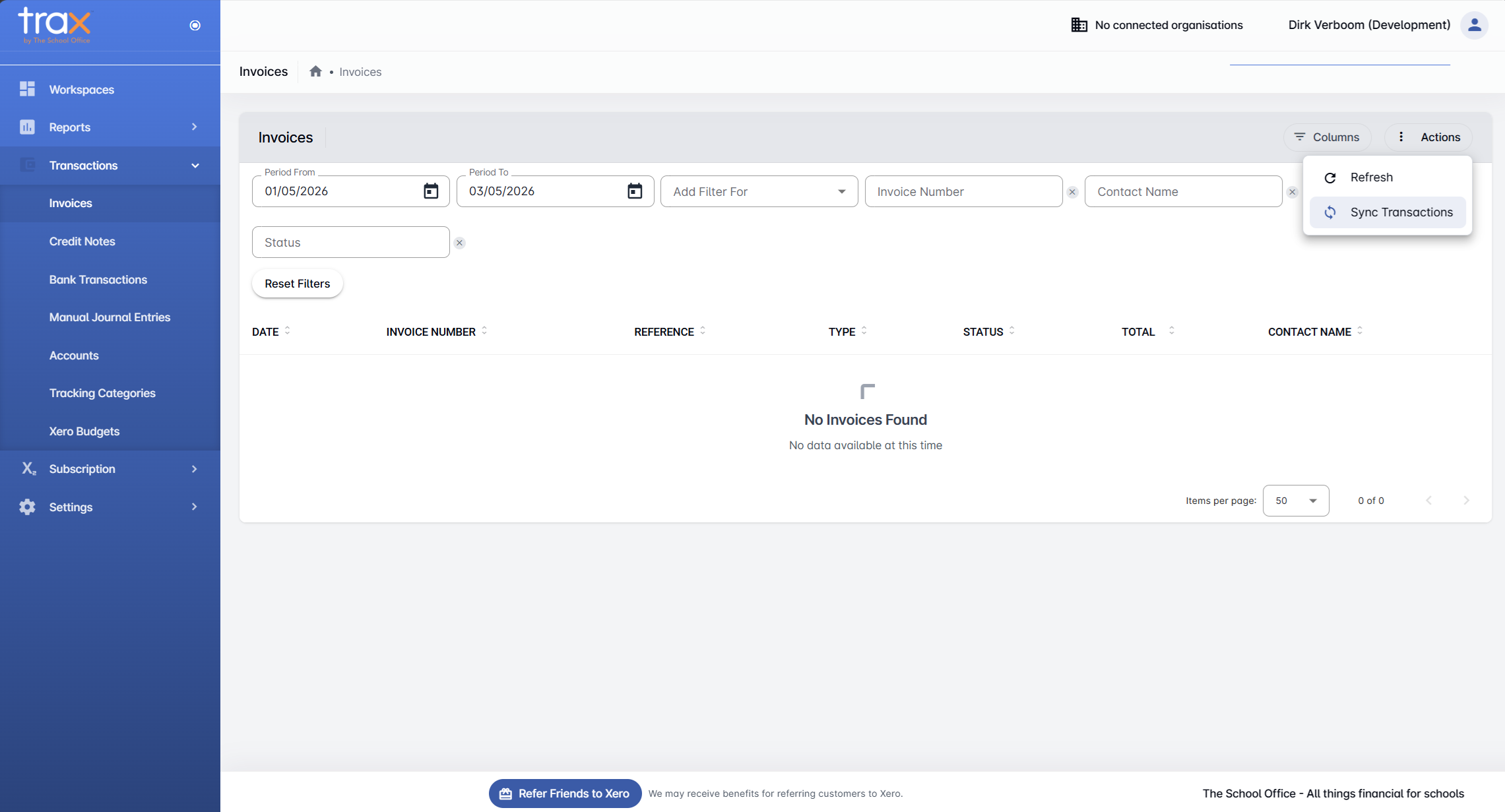
Three options:
- Refresh — re-loads invoices already synced into TRAX (doesn’t pull new data from Xero — just reloads what’s stored).
- Sync Transactions — opens the Sync Invoice Transactions dialog (covered next) to pull fresh invoice data from Xero.
- Reset Filters — clears all active filters (same as the Reset Filters button below the filters).
Syncing invoices from Xero
To pull the latest invoice data from your connected Xero organisation, choose Actions → Sync Transactions. The Sync Invoice Transactions dialog opens.
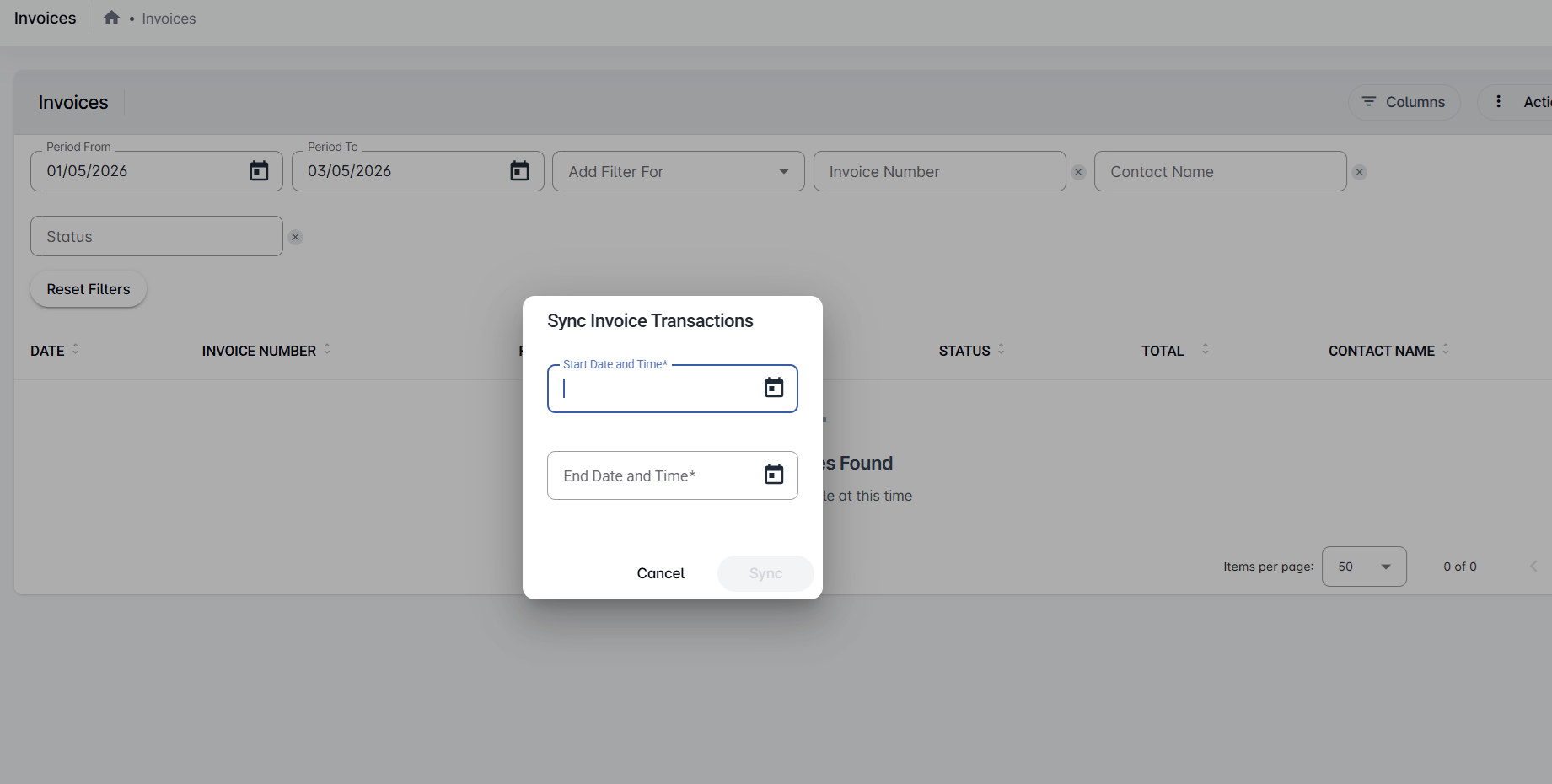
You’ll see two required date fields:
- Start Date and Time — earliest date to sync from
- End Date and Time — latest date to sync up to
The Sync button stays disabled until both dates are filled in.
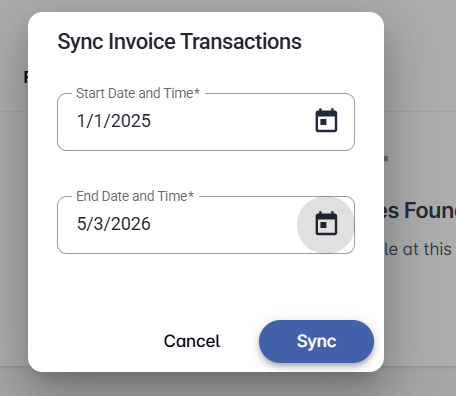
Once both fields are populated, the Sync button activates. Click it to begin syncing — TRAX will fetch every invoice from your Xero organisation that falls in the chosen date range.
Note: Larger date ranges take longer to sync. Start with a recent 1–3 month window for the fastest results, and run separate syncs for older periods if you need a fuller history.
Troubleshooting
“No Invoices Found” even after sync. Check the date filter at the top of the page — your synced invoices may fall outside the current Period From / Period To range. Try clicking Reset Filters to see all invoices.
Invoices are out of date. Xero data isn’t pushed to TRAX automatically. Run Sync Transactions any time you need the latest invoices.
For anything else, get in touch with TSO support.