The Organisations page is where you connect your TRAX workspace to one or more Xero organisations. Use it to authorise a new Xero connection, monitor sync status, and re-authorise existing connections when they expire.
To open it, click Settings → Organisations in the left navigation.
The Organisations page at a glance
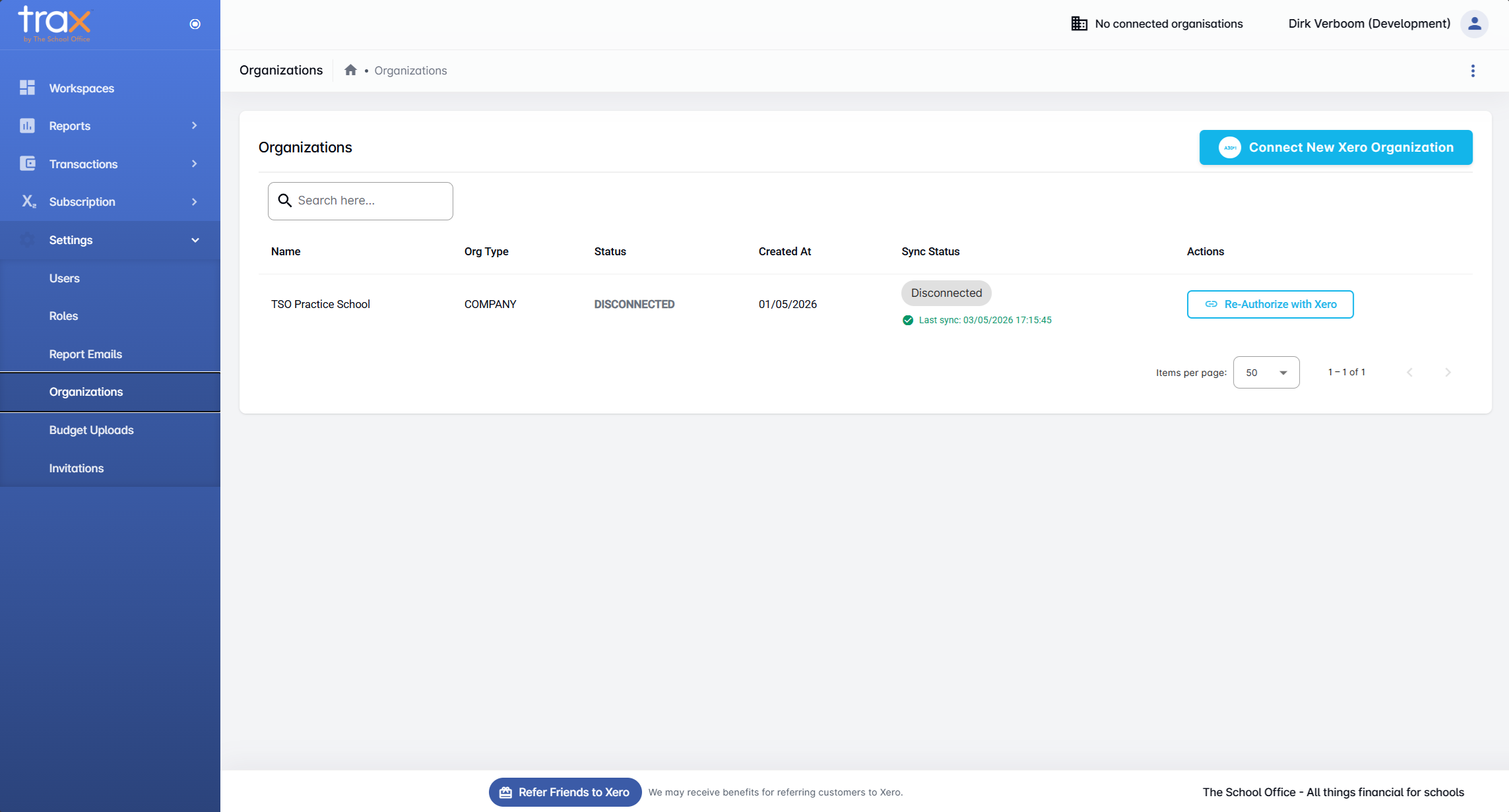
The page lists every Xero organisation connected (or previously connected) to your workspace, with these columns:
- Name — the Xero organisation name
- Org Type — typically COMPANY or another Xero entity type
- Status — current connection state (Connected or Disconnected)
- Created At — when the connection was first authorised
- Sync Status — timestamp of the most recent data sync
- Actions — context-sensitive buttons (e.g. Re-Authorize with Xero when a connection has expired)
Use the Search bar at the top to find an organisation by name in larger lists.
Connecting a new Xero organisation
Click Connect New Xero Organization in the top-right. You’ll be redirected to Xero to authorise TRAX, then sent back once the new organisation is connected. This uses the same flow as initial signup — see Sign up with Xero for a full walkthrough of the Xero authorisation step.
Re-authorising a disconnected organisation
If a Xero connection has expired or been revoked, the Status column shows DISCONNECTED and the row gets a Re-Authorize with Xero button in the Actions column. Click it to restore the connection — TRAX redirects to Xero and re-establishes the link once you approve.
Tips
- Re-authorise promptly. Reports and transactions can’t sync while a connection is disconnected.
- Multiple organisations are supported. One workspace can connect to several Xero organisations — useful for groups managing more than one entity.
- Watch the sync timestamp. The “Last sync” time tells you how stale your data is. Run Sync Transactions from individual transaction pages (Invoices, Bank Transactions, etc.) to refresh.
For anything else, get in touch with TSO support.