
The Manual Journals page lists manual journal entries synced from your connected Xero organisation. Use it to review journal activity over a date range, filter by status, and pull fresh data on demand.
To open it, click Transactions → Manual Journal Entries in the app sidebar (shown as Transactions → Manual Journals in the docs sidebar).
The Manual Journals page at a glance
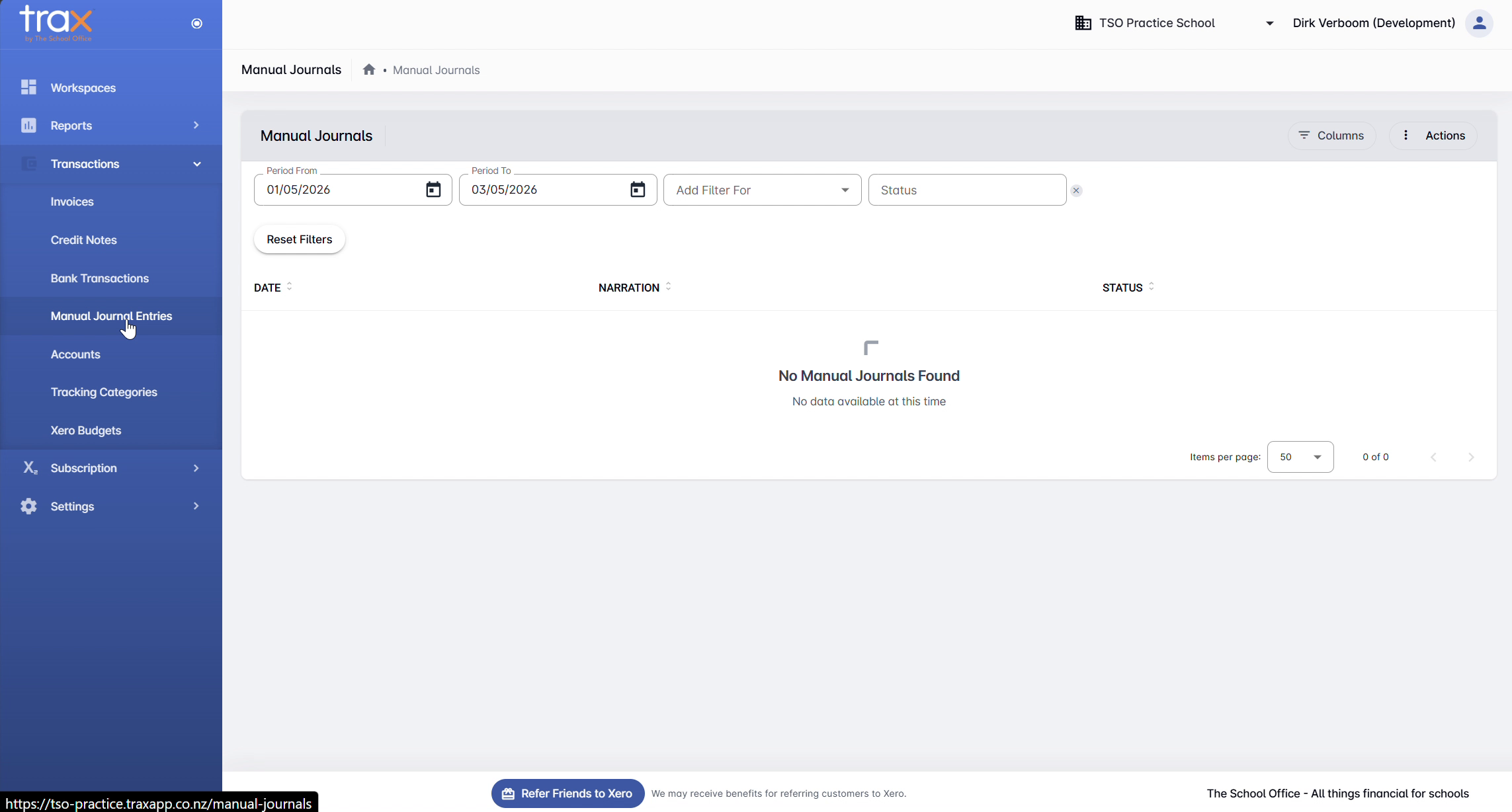
The layout mirrors the Invoices page:
- Filters bar at the top — narrow the list by date range or status.
- Action buttons in the top-right (Columns, Actions) — control which columns are visible and run sync operations.
- Manual journals table in the middle — default columns: Date, Narration, and Status.
Filtering manual journals
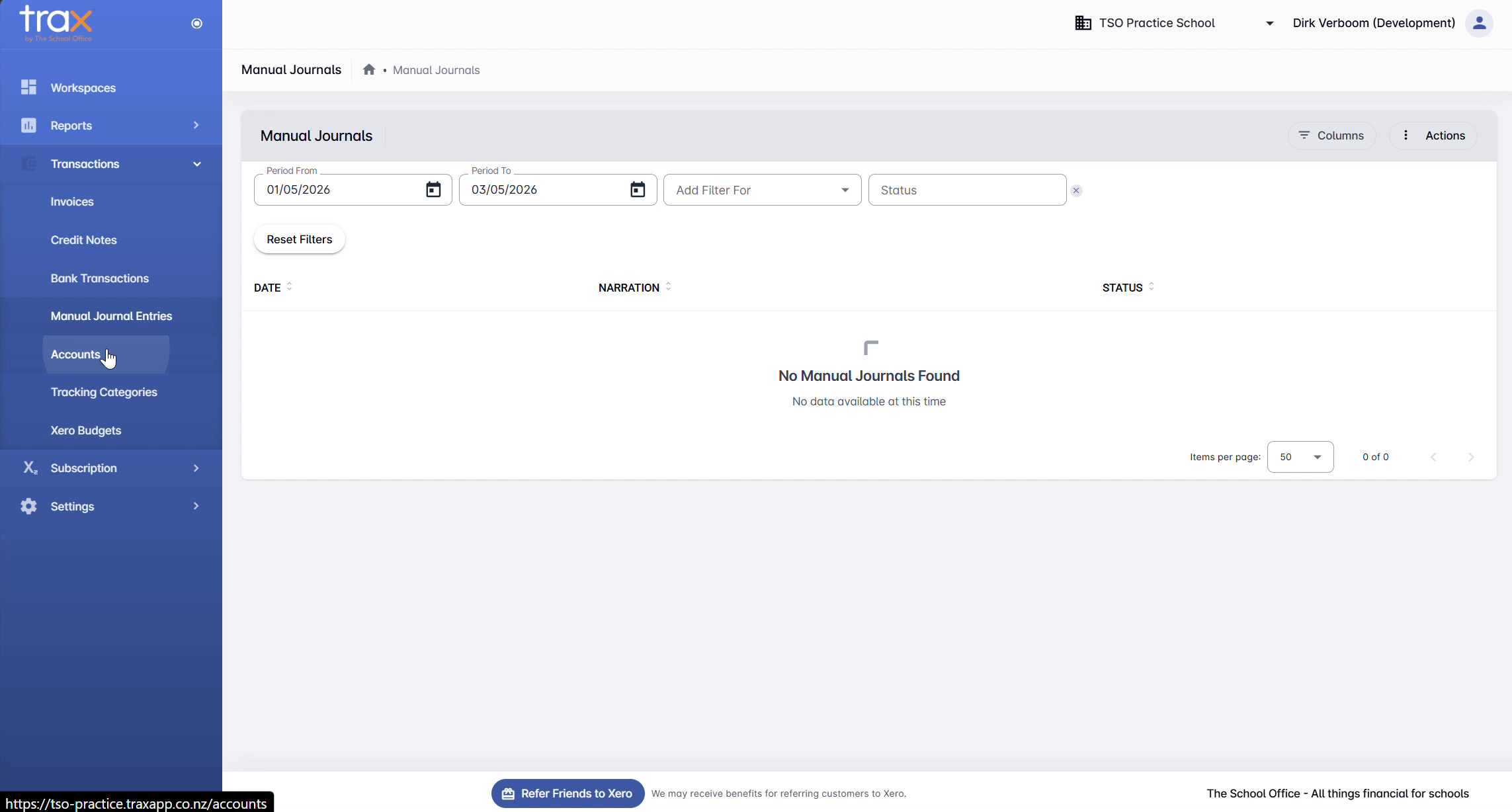
Use the Add Filter For dropdown to add or remove filter fields. The Manual Journals page has fewer filter options than other transactions pages — only one filter is available:
- Status — manual journal status (e.g. Posted, Draft, Voided)
Click Reset Filters to clear everything.
Customising visible columns
Click the Columns button (top-right) to toggle which columns appear in the table. The default columns are Date, Narration, and Status.
Syncing manual journals from Xero
To pull the latest manual journal data from Xero, click Actions → Sync Manual Journals. The Sync dialog opens with Start Date and End Date fields. Once both dates are filled in, click Sync to fetch every manual journal from your Xero organisation in that date range.
The sync flow is identical to the Invoices page — see Invoices for full details and screenshots of the sync dialog.
Troubleshooting
“No Manual Journals Found” even after sync. Check the date filter at the top of the page — your synced journals may fall outside the current Period From / Period To range. Try clicking Reset Filters to see all manual journals.
Manual journals are out of date. Xero data isn’t pushed to TRAX automatically. Run Actions → Sync Manual Journals any time you need the latest data.
For anything else, get in touch with TSO support.