
The Budget Uploads page lets you upload custom budget files to TRAX so you can compare actuals against any baseline you choose — useful when budgets are maintained outside Xero, or when you want to track against an older or hypothetical budget version.
Uploaded budgets are used by the Profit and Loss With Budget Tracking Report when Uploaded Budget is selected as the budget source.
To open the page, click Settings → Budget Uploads in the left navigation.
The Budget Uploads page
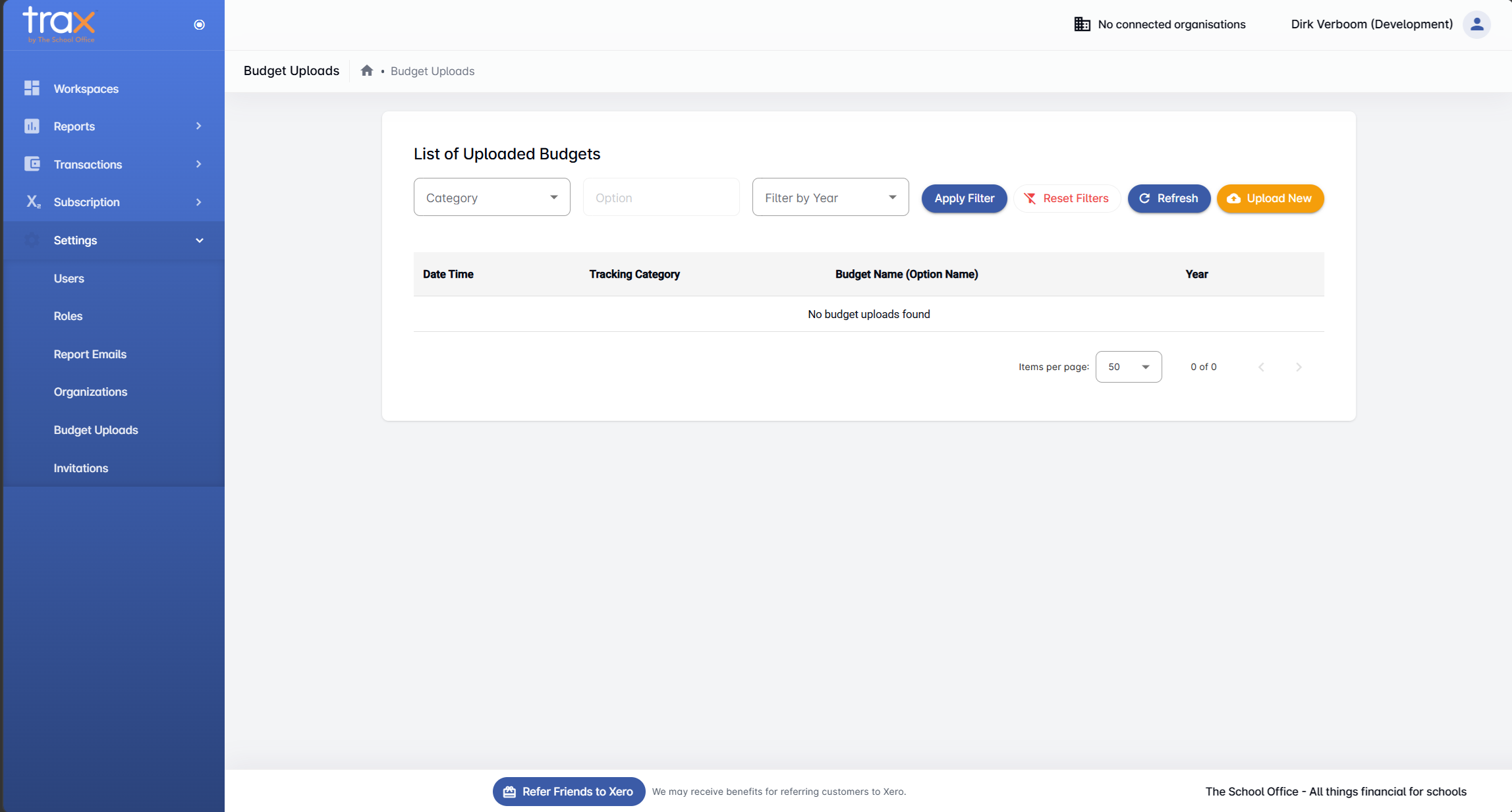
The List of Uploaded Budgets section shows every budget file currently uploaded, with these columns:
- Date Time — when the budget was uploaded
- Tracking Category — which Xero tracking category the budget applies to (e.g. Curriculum, Activities)
- Budget Name (Option Name) — the specific tracking category option (e.g. Mathematics, Drama)
- Year — which financial year the budget covers
When no budgets have been uploaded yet, you’ll see “No budget uploads found”.
Filtering uploaded budgets
Three filter controls sit above the list:
- Category — dropdown to filter by tracking category (Curriculum, Activities, etc.)
- Option — text field to filter by a specific option within the selected category
- Filter by Year — dropdown to filter by financial year
After setting filters, click Apply Filter to update the list, or Reset Filters to clear them all.
Action buttons
- Refresh — reload the list (useful after uploading via another tab or after a bulk operation)
- Apply Filter / Reset Filters — manage the active filters (above)
- Upload New — opens the upload dialog to add a new budget file
Tips
- Each upload is keyed by category + option + year. Uploading a new budget for the same combination replaces the previous one.
- Use Sync Budgets when possible. If your budgets already live in Xero, the Budget Tracking Report’s Sync Budgets option avoids manual uploads entirely.
- Check the date stamp. The Date Time column tells you when each budget was last uploaded — useful for verifying updates have landed.
For anything else, get in touch with TSO support.